Import/export md document

by Gabriele Venier
Genuin Studio

Documents can now be exported and imported as Markdown: download the text of a document, refine it however you like — by hand or with an AI agent — and upload it back to the platform. The original file never has to be touched.

Why it matters

Until now, correcting the text of a document meant deleting it, fixing the source file (often a 100+ page PDF), and uploading it all over again. That is slow and expensive: a new OCR pass, the wait for reprocessing, and the risk of losing what had already been set up — the links between text and figures, and the machine models associated with the document, sometimes assigned by hand.

Markdown import/export removes that detour. The document keeps its identity: same figure references, same linked models, same history. Only the text changes.

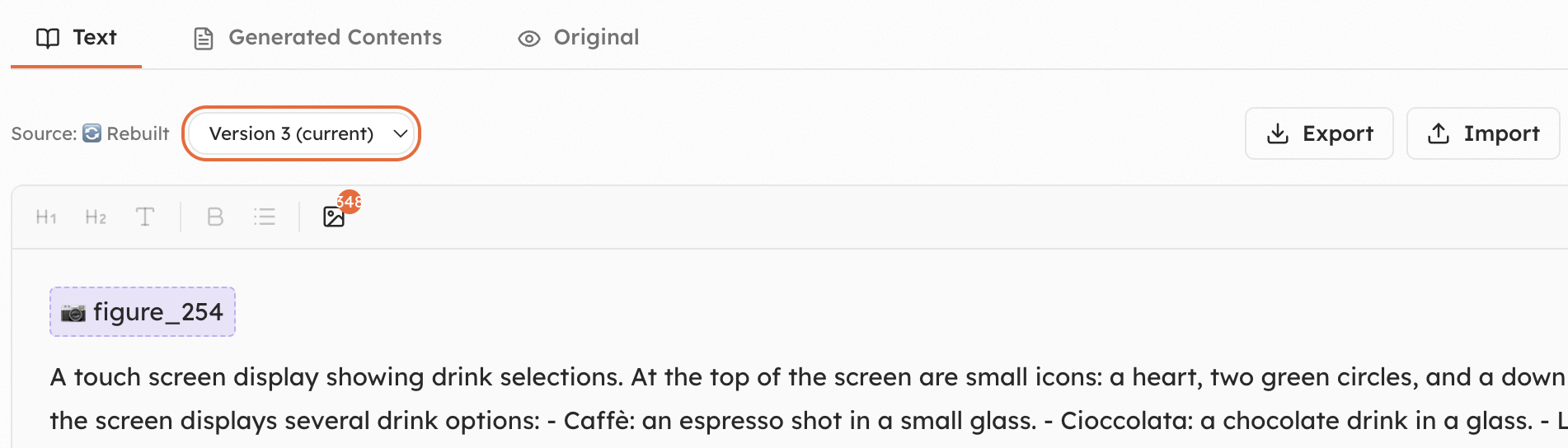
The Text tab of a document, with the Export and Import actions

Export, refine, import

From the Text tab of any document:

  • Export — download the current version as a .md file. Figure placeholders such as figure_254 travel with the text and stay anchored to the same images.
  • Refine — open it in any editor, or hand it to an AI agent: fix OCR artefacts, rewrite image descriptions, reorder or merge sections, normalise terminology, clean up a manual that was never meant to be read by a machine.
  • Import — upload the .md file back into the editor and review the result before saving.

Every save creates a new version

When you press Save, the platform:

  • increments the document version
  • reprocesses the content and splits it into sections again
  • recomputes the embeddings, so assistants start answering on the updated text right away

Not happy? Go back

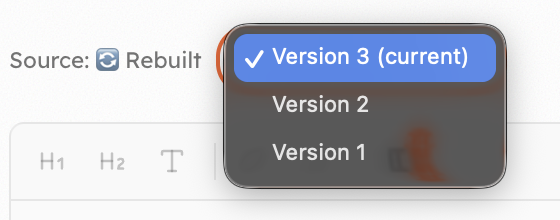
Nothing is lost along the way. Use the version selector at the top of the Text tab to compare an earlier version and restore it — the reprocessing simply runs again on the version you choose.

The version selector on the document

Machine custom attributes

by Gabriele Venier
Connect

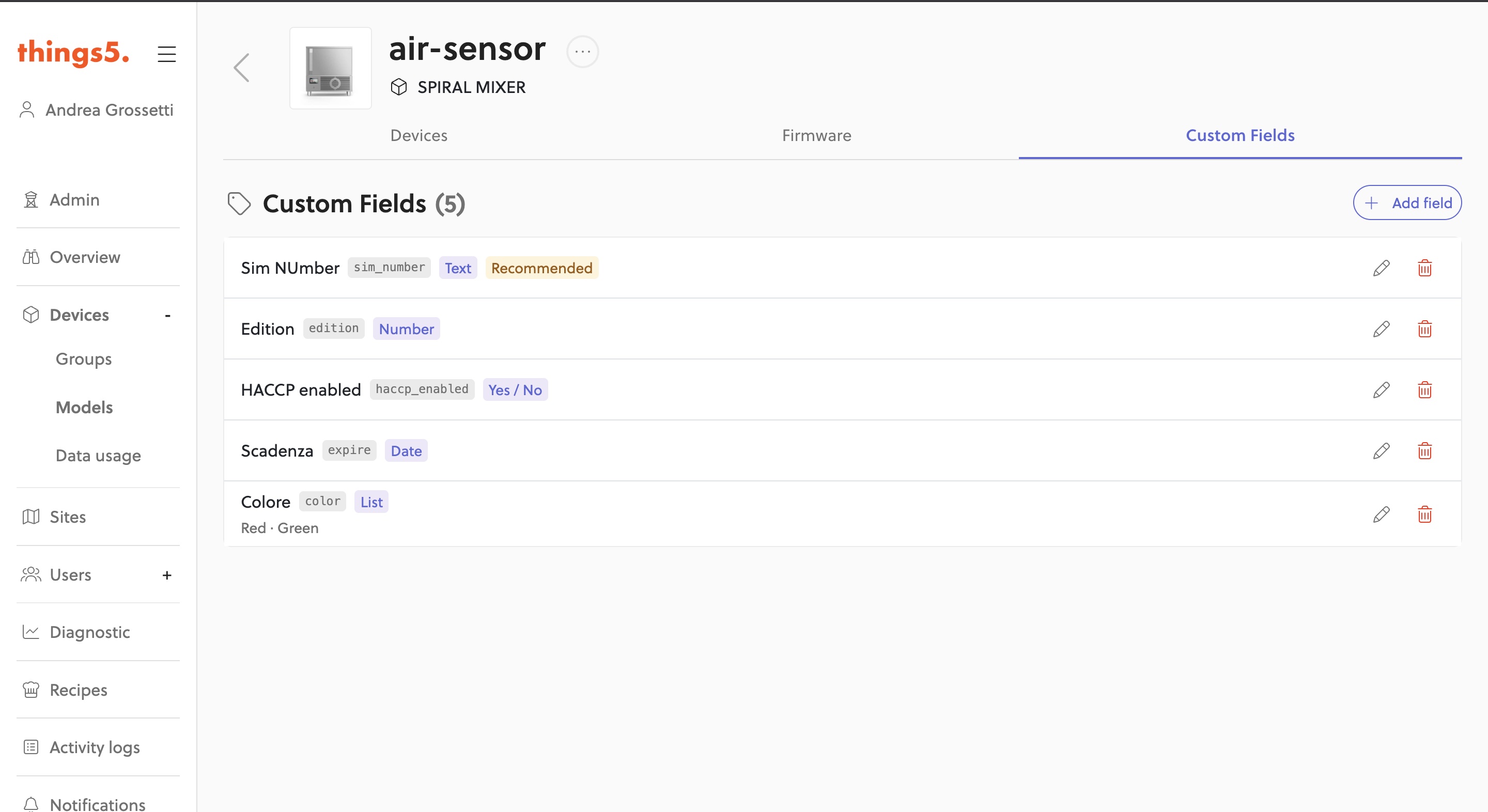
Machines can now have custom attributes: additional information specific to each individual machine, such as the SIM number, testing outcome, internal asset codes, or the contract expiration date. Fields are defined once at the machine model level and become available on every machine of that model.

Define the fields on the model

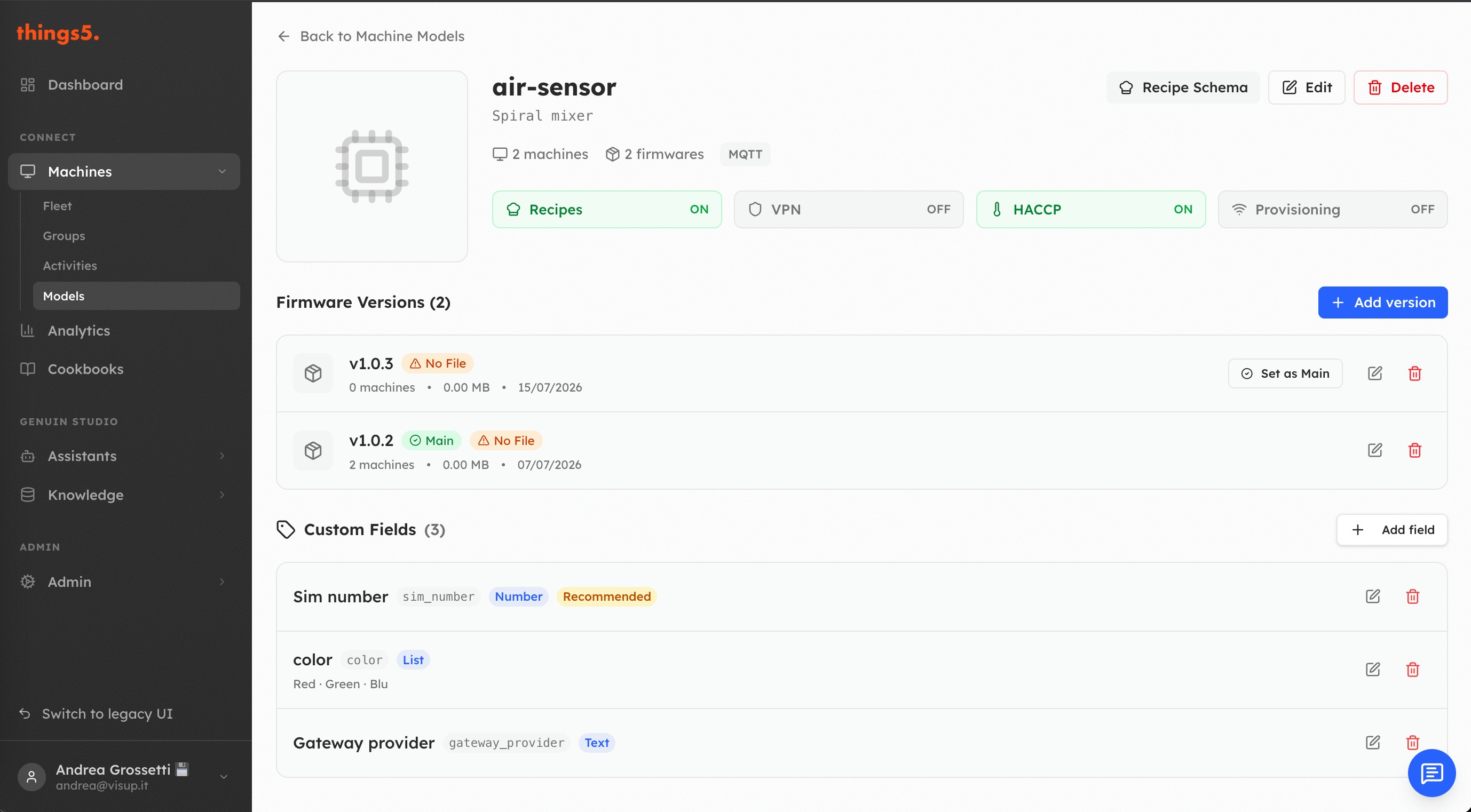
From the machine model page, administrators can add typed fields in the new Custom Fields tab:

  • Text — free-form values (e.g. an internal code)
  • Number — numeric values (e.g. the SIM number)
  • Yes / No — boolean toggles (e.g. "Tested")
  • List — a fixed set of options, each with a localizable label per language
  • Date — calendar dates (e.g. the contract expiration)

Fields marked as Recommended show a reminder on machines where they are left empty, without ever blocking the save.

The custom fields defined on the model

The custom fields defined on the model

Fill them in right from machine creation

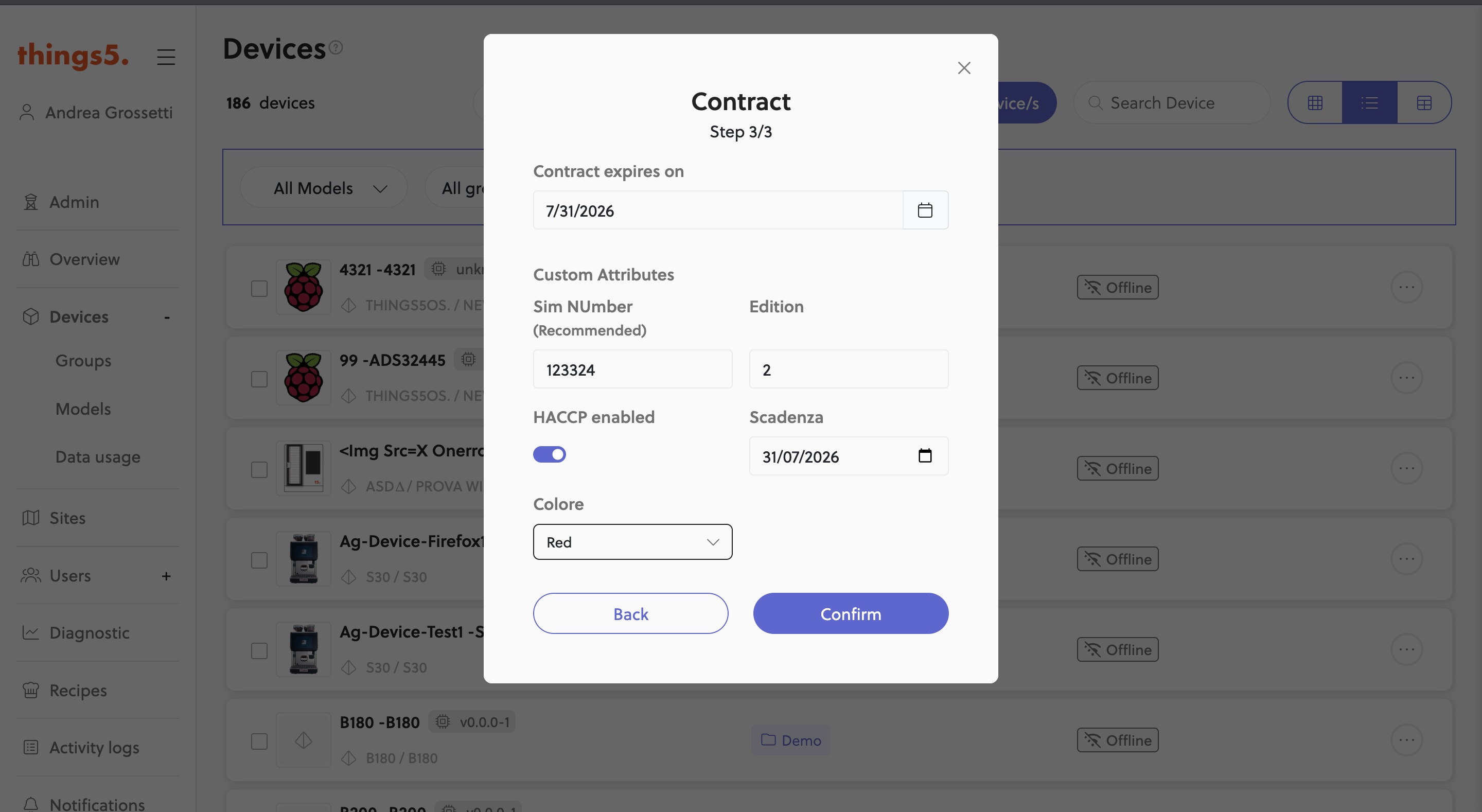
When you create a new machine, its custom attributes appear directly in the last step of the creation wizard: machines start out complete with all their data.

Custom attributes in the machine creation wizard

Custom attributes in the machine creation wizard

View and edit them from the machine detail

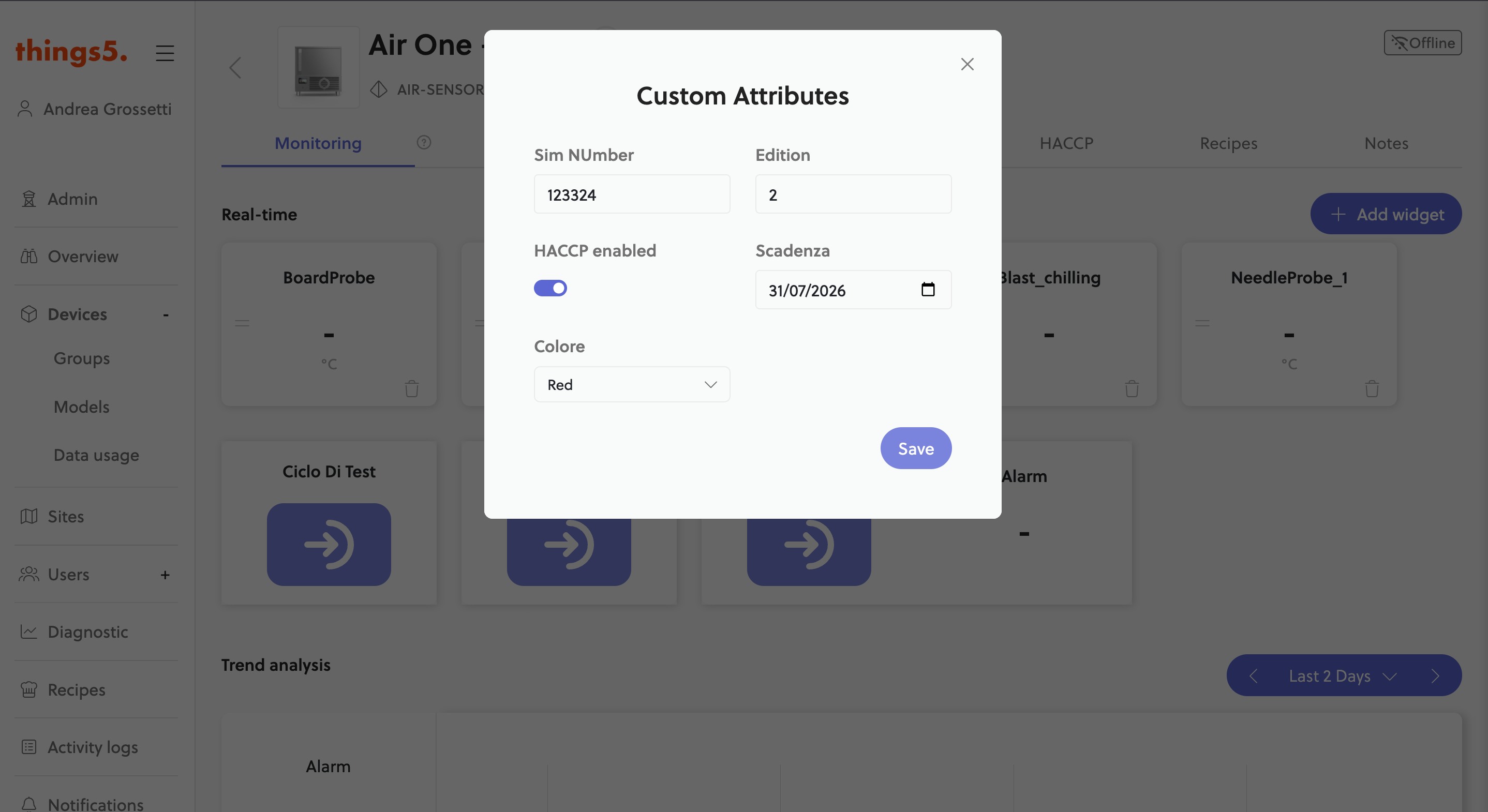
From the machine detail page you can open the Custom Attributes dialog to view and update the values at any time.

The attributes filled in from the machine detail

The attributes filled in from the machine detail

Machine custom attributes

by Gabriele Venier
Connect

Machines can now have custom attributes: additional information specific to each individual machine, such as the SIM number, testing outcome, internal asset codes, or the contract expiration date. Fields are defined once at the machine model level and become available on every machine of that model.

Define the fields on the model

From the machine model page, administrators can add typed fields in the new Custom Fields section:

  • Text — free-form values (e.g. an internal code)
  • Number — numeric values (e.g. the SIM number)
  • Yes / No — boolean toggles (e.g. "Tested")
  • List — a fixed set of options, each with a localizable label per language
  • Date — calendar dates (e.g. the contract expiration)

Fields marked as Recommended show a reminder on machines where they are left empty, without ever blocking the save.

The custom fields defined on the model

The custom fields defined on the model

Fill them in right from machine creation

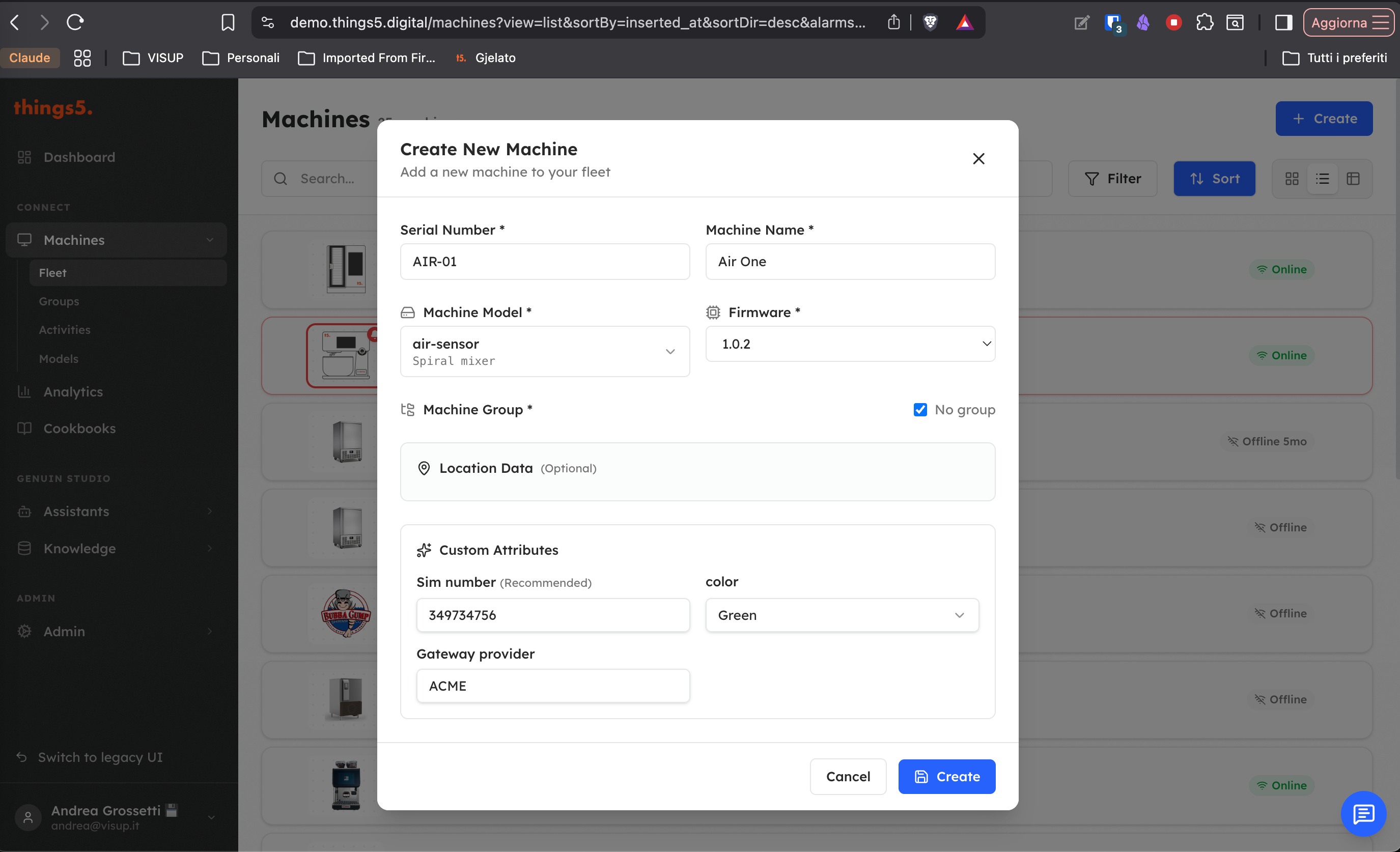
When you create a new machine, as soon as you select the model its custom attributes appear directly in the creation form: machines start out complete with all their data.

Custom attributes in the machine creation form

Custom attributes in the machine creation form

View and edit them from the machine detail

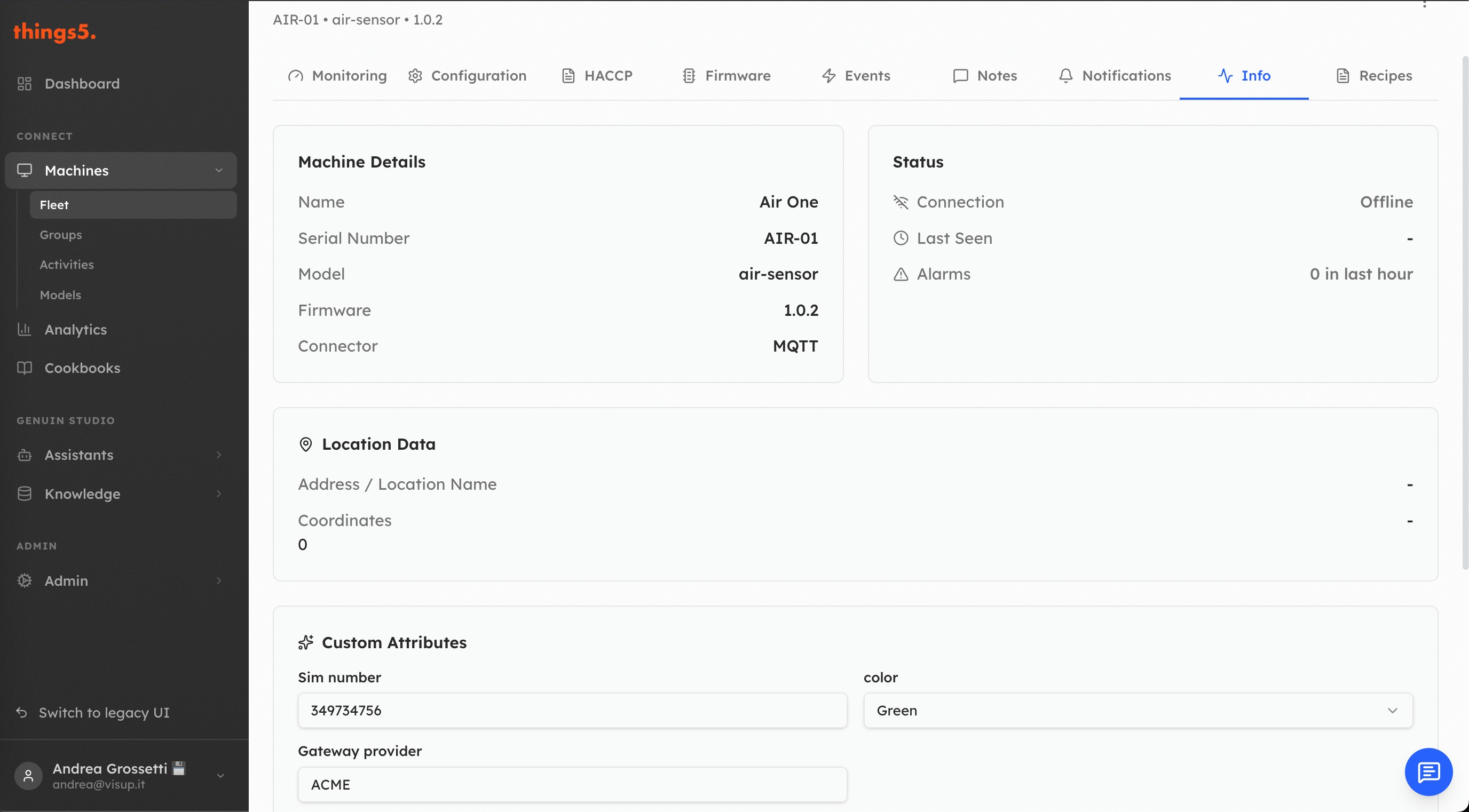
In the machine's Info tab you'll find the "Custom Attributes" section to view and update the values at any time.

The attributes filled in on the machine's Info tab

The attributes filled in on the machine's Info tab